

VanceAI Review: Features, Pricing, Pros, Cons & How Vance AI Works
Have you ever taken a great photo only to find that it looks blurry, pixelated, or less detailed than you expected? Or perhaps you have an old family picture that you want to restore or a product image that needs a more professional look.
Editing these images manually can take time, especially if you don’t have experience with photo editing software.
This is where VanceAI comes in. It is an AI-powered image editing platform that helps users improve image quality, sharpen blurry photos, increase resolution, remove backgrounds, restore old pictures, and perform other editing tasks with less manual effort.
Instead of relying entirely on traditional editing tools, you can use its AI features to process images in just a few clicks.
AI image enhancement has become increasingly popular because people need high-quality visuals for social media, websites, online stores, blogs, and marketing campaigns. AI tools make it easier to improve low-resolution images, reduce noise, and recover details without spending hours learning complicated editing software.
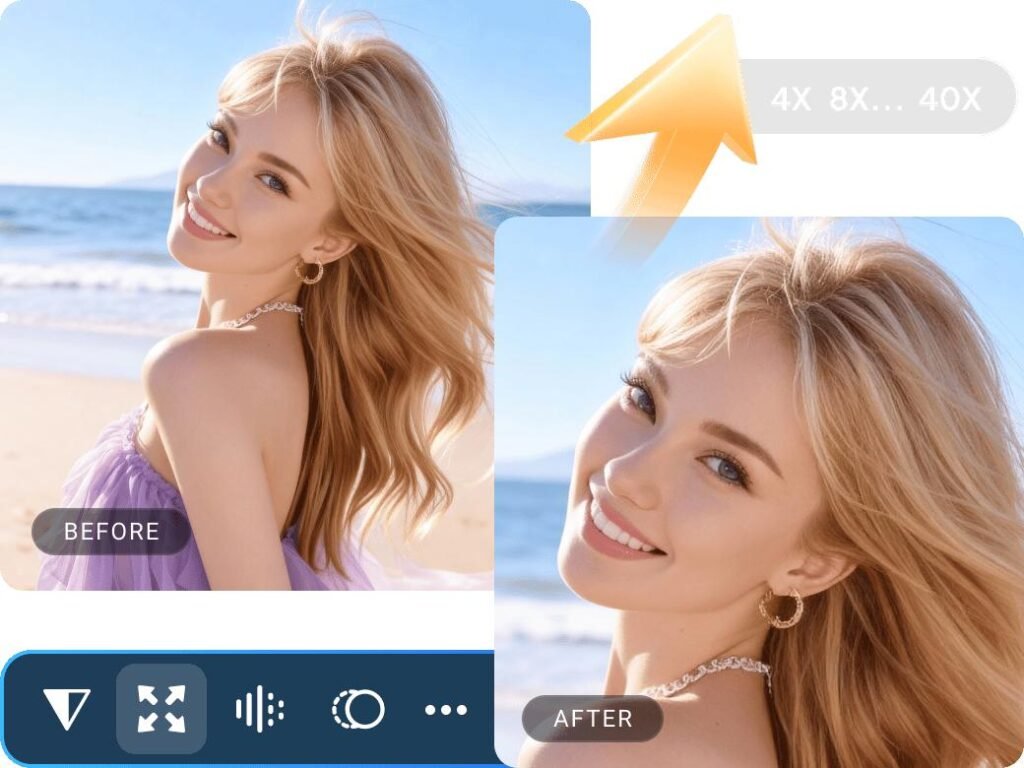
One thing I find interesting about Vance AI is that it brings multiple AI-powered image editing tools together on one platform.
You can use it to upscale images, sharpen photos, remove unwanted backgrounds, colorize old pictures, and turn photos into creative styles. VanceAI also offers desktop software for users who prefer local processing and batch editing. <Cite refs={[“turn222308search1″,”turn222308search4″,”turn222308search5”]}/>
But is VanceAI worth using, and how well does it perform in real-world situations? Is its free version enough for occasional editing, or do you need a paid plan to get the most out of it?
In this VanceAI review, I’ll cover its main features, how it works, pricing plans, advantages, and disadvantages. I’ll also discuss who can benefit most from the platform and what you should consider before paying for a subscription.
Overall, VanceAI may be worth considering if you’re a content creator, blogger, photographer, online seller, graphic designer, or someone who regularly works with images.
It’s also useful for everyday users who want to improve personal photos without dealing with complicated editing tools. However, the results and value you get will depend on your image quality, editing needs, and budget.
What Is VanceAI?
VanceAI is an AI-powered image editing platform that helps users improve, edit, and transform images without requiring advanced photo editing skills. It offers a collection of tools for tasks such as increasing image resolution, sharpening blurry photos, removing noise, restoring old pictures, and removing backgrounds.
What makes VanceAI useful is that you don’t need to handle every editing task manually. Instead of spending time adjusting different settings, you can upload an image, select the tool you need, and let AI do most of the work.
For example, if you have a low-quality product photo for your online store, you can use an image upscaler to increase its resolution or a background remover to create a cleaner image. Similarly, if an old family photograph looks faded or blurry, you can try VanceAI’s restoration and enhancement tools to improve its appearance.
VanceAI uses AI models trained to recognize patterns, details, and features in images. Depending on the tool, these models can help sharpen edges, reduce visual noise, improve colors, or generate additional image details during upscaling.
Another advantage is that VanceAI offers both online tools and desktop software. The online platform is convenient for quick edits without installing a program, while its desktop software provides additional options for users who prefer working on their computers.
VanceAI can be useful for several types of users, including:
- Bloggers and content creators: Improve images for articles, websites, and social media posts.
- Photographers: Enhance photos, reduce noise, and restore older images.
- Ecommerce sellers: Improve product images and remove distracting backgrounds.
- Graphic designers: Prepare images for creative projects and marketing materials.
- Everyday users: Sharpen personal photos, restore old pictures, or turn images into cartoon-style artwork.
The platform includes several categories of tools, such as image enhancement, upscaling, sharpening, denoising, restoration, cartoonization, and background removal. This makes VanceAI a convenient option for people who want to handle different image editing tasks from one place.
How Does VanceAI Work?
VanceAI follows a fairly simple process. You don’t need to understand how AI models work behind the scenes to use its image editing tools.
Here’s how the typical workflow looks:
Step 1: Upload an image
Open the VanceAI website and select the tool you want to use. Upload an image from your computer to get started.
Step 2: Choose an AI tool
Select the feature that matches your needs. For example, you can use an image upscaler to increase resolution, an image sharpener to improve clarity, or a background remover to separate the subject from its background.
Step 3: Let AI process the image
Once you submit the image, VanceAI processes it using the selected AI model. Depending on the tool, it may improve details, reduce noise, sharpen edges, or adjust other aspects of the image.
Step 4: Preview the result
After processing, review the enhanced image. Compare it with the original to see whether the changes look natural and whether the result meets your expectations.
Step 5: Download the enhanced image
If you’re happy with the result, download the processed image. You can then use it on your website, social media accounts, online store, or personal projects.
The technology behind VanceAI relies on AI and deep-learning models that learn patterns from image data. These models can identify common visual features and use that knowledge to improve an image or predict missing details.
For instance, when upscaling a low-resolution photo, an AI model can generate plausible details to produce a larger image. However, these details are not always an exact representation of the original scene, so it’s worth checking the result carefully, especially when working with faces or important product details.
Is VanceAI Easy to Use?
In my view, one of the main reasons to consider VanceAI is its straightforward workflow. Traditional photo editing software can take time to learn, especially if you’re unfamiliar with layers, masks, filters, and manual adjustments. VanceAI simplifies many common tasks by letting you select a tool and allowing AI to handle much of the editing.
The typical workflow is simple: open a tool, upload your image, choose the available settings, process the image, and download the result. This makes the platform approachable even if you’ve never used professional photo editing software.
Here are a few things worth knowing about its ease of use:
- Interface: The tools are organized around specific image editing tasks, making it easier to find the feature you need.
- Upload process: You can generally start by selecting an image from your computer rather than importing it into a complicated editing workspace.
- Editing workflow: Most tools automate the main editing process, so you don’t need to adjust every detail manually.
- Beginner-friendliness: Users with little or no editing experience can try common tasks such as upscaling, sharpening, and background removal.
- Processing speed: Many routine edits can be completed quickly, although the actual processing time depends on the tool, image size, processing queue, and whether you’re using the online platform or desktop software.
However, easy operation doesn’t automatically mean every result will be perfect. Some images may require multiple attempts, and AI-generated details can occasionally look unnatural. I recommend checking the final image before using it for professional work.
Overall, VanceAI is worth considering if you want a simpler way to improve images without learning a full-featured photo editing program.
VanceAI Features
One of the main reasons to consider VanceAI is the variety of image editing tools available on the platform. Instead of using separate tools for sharpening, upscaling, background removal, and photo restoration, you can access several AI-powered features from one place.
These tools are designed for different image editing needs. Some focus on improving the quality of existing photos, while others help you transform images or prepare them for websites, online stores, and social media.
In this section, I’ll look at the main VanceAI features, what each tool does, and where you might find it useful.
AI Image Enhancer
The AI Image Enhancer is one of the main tools to explore if you want to improve the overall quality of a photo. Sometimes, an image looks dull, lacks detail, or has poor lighting. Improving these issues manually can take time, especially if you don’t have much photo editing experience.
VanceAI’s Image Enhancer is designed to improve several aspects of an image in one workflow, including resolution, color, sharpness, contrast, and exposure.
Here are some of the things you can use it for:
- Improve overall image quality: Make photos look clearer and more refined.
- Sharpen details: Improve the appearance of edges and fine details that look soft.
- Improve colors: Make colors appear more balanced and visually appealing.
- Adjust contrast: Help separate darker and lighter areas so the image looks clearer.
- Improve exposure: Enhance the appearance of images that look too dark or lack brightness.
- Improve resolution: Help produce a clearer image, depending on the original photo and the selected processing options.
For example, imagine you’ve taken a product photo for your website, but the image looks slightly dull and lacks detail. Instead of adjusting several settings in a traditional editor, you can try VanceAI’s image enhancement tool and compare the processed result with the original.
I would consider this feature useful for bloggers, online sellers, content creators, and anyone who regularly works with digital images. However, the final result will depend on the original image, and AI enhancement won’t always fix every issue perfectly.
AI Image Upscaler
The AI Image Upscaler is designed to increase an image’s resolution while improving the appearance of its details. It’s particularly useful when you have a small image that looks pixelated or blurry when enlarged.
Normally, increasing an image’s dimensions can make it look stretched or soft. AI upscaling takes a different approach by using a trained model to predict and generate additional details while enlarging the image.
VanceAI advertises image upscaling of up to 40×, although the available enlargement options and results can depend on the tool and image you’re processing.
Some practical uses include:
- Low-resolution photos: Enlarge small images for use in digital projects.
- Printing: Prepare suitable images for larger prints, depending on their original quality and the required print dimensions.
- E-commerce product images: Increase image dimensions for product listings and product presentation.
- Social media graphics: Enlarge older graphics or small images for new content.
- Website images: Improve the dimensions of images that need to appear larger on a page.
For example, if you have a small product image that looks blurry when viewed at full size, you can try upscaling it before adding it to your online store.
One thing to remember is that upscaling doesn’t recover every original detail. The AI may generate details that look realistic but aren’t present in the source image. For this reason, I recommend checking faces, text, product labels, and other important details before using an upscaled image commercially.
AI Image Sharpener
The AI Image Sharpener is useful when a photo looks soft or lacks clear edges. This can happen when you take a quick picture, use a camera with limited capabilities, or work with an image that has lost detail during compression.
VanceAI’s sharpening tool uses AI to improve the appearance of details and make images look clearer without requiring you to adjust sharpening settings manually.
You can consider using it for the following situations:
- Blurry images: Improve the clarity of photos that look slightly soft.
- Edge detail: Make boundaries between objects and backgrounds appear more defined.
- Soft portraits: Improve the appearance of facial and hair details.
- Out-of-focus photos: Try to improve images that missed focus slightly.
- Motion blur: Attempt to improve certain images affected by movement, although severe motion blur can be difficult to correct.
For instance, if you have an otherwise good photograph that looks slightly blurry when you zoom in, an AI sharpener may help make it more usable.
However, sharpening has its limits. If an image is severely out of focus or contains very little original detail, the tool may not be able to produce a natural-looking result. Excessive sharpening can also create unwanted outlines or make textures appear artificial.
AI Denoiser
Image noise appears as unwanted grain or tiny colored specks in a photograph. It’s especially common in low-light pictures taken with a smartphone or camera. Heavy compression can also introduce unwanted visual artifacts.
VanceAI’s AI Denoiser is designed to reduce this noise while retaining as much useful image detail as possible.
You may find it helpful for:
- Low-light photos: Reduce visible grain in pictures taken indoors or at night.
- Noisy portraits: Make skin tones look cleaner while preserving important facial details.
- Compressed images: Reduce some unwanted visual noise and artifacts.
- Product photography: Clean up images that look grainy or uneven.
- Older digital photos: Improve the appearance of images captured with older cameras.
For example, imagine taking a photograph at a restaurant with limited lighting. The picture may capture the moment well, but the background and darker areas could look grainy. You can try the denoising tool to make the image look cleaner.
The important thing is to find a balance between noise reduction and detail preservation. Removing too much noise can make skin, hair, and other textures look unnaturally smooth.
AI Photo Restorer
The AI Photo Restorer is designed to improve the appearance of old, faded, or damaged photographs. If you have family pictures that have been stored for years, you may notice scratches, faded colors, blurry faces, or other signs of age.
VanceAI offers AI-powered restoration tools that can help improve the appearance of these photographs without requiring you to repair every damaged area manually.
Some of its potential uses include:
- Restoring old photographs: Improve the overall appearance of older family pictures.
- Reducing scratches and damage: Help minimize the visibility of certain marks and imperfections.
- Improving faded images: Make photographs look clearer and more visually balanced.
- Enhancing faces: Improve the appearance of facial details in suitable photographs.
- Preserving memories: Prepare old pictures for digital albums, family websites, or personal archives.
For example, if you have an old family photograph with faded details, you can upload it to a restoration tool and review the enhanced version. This can be a convenient way to improve the image before saving or sharing it with family members.
I particularly like the idea of using AI restoration for photographs that would otherwise require extensive manual editing. However, the results depend on how damaged the original image is. AI may also generate or alter details that are difficult to recover from the original photograph, so it’s important to keep an untouched copy of valuable pictures.
AI Background Remover
VanceAI’s AI Background Remover, also known as BGremover, helps separate the main subject of an image from its background. Instead of manually selecting an object and removing the surrounding area, you can let AI identify the subject and create a cutout.
This feature can save time if you regularly prepare product images, portraits, or graphics for websites and marketing materials.
Here are some of its common use cases:
- People and portraits: Remove distracting backgrounds from profile pictures and portraits.
- Product photography: Create cleaner product images for online stores and marketplaces.
- Animals: Separate pets or other animals from their surroundings.
- Cars and vehicles: Prepare vehicle images for listings or promotional graphics.
- Transparent PNGs: Create images with transparent backgrounds for use in designs.
- Background replacement: Replace the original background with a solid color or another image.
For example, if you’re selling products online, you can use the background remover to create a cleaner product image. You can then place the product against a plain background or use a different image that matches your store’s design.
VanceAI’s BGremover supports transparent cutouts and background replacement. This makes it useful for both basic editing and preparing images for creative projects.
The main thing to check is how well the tool handles fine edges, such as hair, fur, transparent objects, or complicated backgrounds. These areas can sometimes look uneven after automatic removal, so a quick review before publishing is worthwhile.
AI Cartoonizer
The AI Cartoonizer is designed to transform ordinary photographs into cartoon-style images. Instead of manually drawing an illustration or applying several filters, you can use an AI tool to create a stylized version of a photo.
This feature is more focused on creative editing than improving image quality.
Some ways you can use it include:
- Selfies: Turn personal photographs into cartoon-style portraits.
- Profile pictures: Create distinctive avatars for social media accounts.
- Social media content: Make creative images for posts, stories, and other content.
- Digital artwork: Experiment with different illustrated looks.
- Personal projects: Create fun images to share with friends and family.
For example, you can upload a portrait and use the cartoonization feature to create a more illustrated appearance. This can be useful if you want a creative profile picture without spending time learning illustration software.
I would consider this feature a nice extra for casual users and content creators. However, the final style may not match every preference, and some images may produce better results than others depending on lighting, facial visibility, and image quality.
AI Image Compressor
The AI Image Compressor is useful when you want to reduce an image’s file size without making it look noticeably worse. Large image files can take longer to upload, use more storage, and slow down websites when they aren’t optimized properly.
For bloggers, website owners, and ecommerce sellers, image compression is an important part of preparing visuals for the web.
Common uses include:
- Website optimization: Reduce image file sizes before uploading them to a website.
- Faster page loading: Smaller images can reduce the amount of data a page needs to load.
- E-commerce websites: Optimize product images across large catalogs.
- Social media: Make image files easier to store and share.
- Storage savings: Reduce the space required to keep collections of images.
For example, if you’re adding several product images to an online store, compressing them can help reduce the total page weight. This may improve loading performance, particularly for visitors using slower internet connections.
However, compression always involves trade-offs. Depending on the method and settings, reducing file size too much can introduce visible artifacts or soften details. I recommend comparing the compressed image with the original and choosing a balance between file size and visual quality.
If your main goal is website speed, also consider the image format, display dimensions, responsive image sizes, and lazy loading. Compression is only one part of image optimization.
AI Colorizer
VanceAI’s AI Colorizer is designed to add color to black-and-white photographs. This can be useful if you have old family pictures, historical photographs, or other monochrome images that you’d like to see in color.
Traditionally, colorizing a photograph can involve manually selecting different areas and adding colors to clothing, skin, backgrounds, and other objects. AI colorization aims to simplify this process by predicting suitable colors based on the visual information in the image.
Some common use cases include:
- Old family photographs: Add color to black-and-white pictures of relatives.
- Historical images: Create colorized versions of archival photographs for personal or educational projects.
- Portraits: Add plausible skin tones, hair colors, and clothing colors to monochrome portraits.
- Creative projects: Give older photographs a different look for presentations, blogs, or social media.
For example, if you have a black-and-white photograph of your grandparents, you can try colorizing it to create a new version for your family album.
Keep in mind that AI-generated colors are estimates, not necessarily the original colors of the scene. If historical accuracy matters, you should verify the colors using reliable references rather than treating the result as an exact reconstruction.
AI Fashion Model Generator
The AI Fashion Model Generator is aimed at fashion-related image creation and product presentation. Instead of relying entirely on traditional photoshoots, fashion businesses can use AI-based tools to create or enhance visuals featuring clothing and models.
This type of tool can be useful for online stores, clothing brands, and marketers who need attractive product images for their websites and campaigns.
Potential use cases include:
- E-commerce product presentation: Create alternative visuals for displaying clothing.
- Fashion marketing: Prepare images for advertisements, social media posts, and promotional campaigns.
- Catalog creation: Develop visual concepts for online clothing catalogs.
- Creative experimentation: Explore different model presentations and styling ideas.
- Content production: Generate additional fashion-related visuals for marketing materials.
For example, a small clothing brand may want to test different ways of presenting a shirt or dress before investing in a full photoshoot. AI-generated fashion imagery can help with early concepts and marketing experiments.
However, you should check the tool’s current capabilities and available options before relying on it for a specific workflow. AI-generated images can sometimes change garment details, patterns, proportions, or colors. For actual product listings, make sure the visuals accurately represent the clothing customers will receive.
Batch Processing
Batch processing allows you to process multiple images in one workflow rather than editing each file separately. This can be particularly helpful when you work with large collections of photographs.
For example, a photographer might need to improve hundreds of event photos, while an online seller may have a large product catalog that needs consistent image enhancement.
Depending on the software and tool you’re using, batch processing can help with tasks such as:
- Processing multiple images: Apply supported AI operations to a group of files.
- E-commerce workflows: Prepare several product images more efficiently.
- Photography projects: Handle large collections of photos without repeating every step manually.
- Time savings: Reduce repetitive work when processing similar images.
- Desktop workflows: Manage image files locally through compatible desktop software.
VanceAI’s desktop offering is worth exploring if you regularly work with multiple images and prefer a computer-based workflow. Before choosing it, check which tools support batch processing, which file formats are accepted, and whether any usage or processing limits apply.
One important point is that batch processing doesn’t guarantee identical results across every image. Photos with different lighting, subjects, and levels of detail may need individual review. I would still check a sample of the processed images before applying the same workflow to an entire collection.
Which VanceAI Features Are Most Useful?
The best feature depends on what you want to achieve. Here’s a quick comparison to help you decide which tools to explore first.
|
Feature |
Best use case |
|
AI Image Enhancer |
Improving overall photo quality |
|
AI Image Upscaler |
Enlarging low-resolution images |
|
AI Image Sharpener |
Improving clarity and edge details |
|
AI Denoiser |
Reducing grain in low-light photos |
|
AI Photo Restorer |
Improving old or damaged photographs |
|
AI Background Remover |
Creating transparent product images |
|
AI Cartoonizer |
Making cartoon-style portraits |
|
AI Image Compressor |
Reducing image file sizes for websites |
|
AI Colorizer |
Adding color to black-and-white photos |
|
AI Fashion Model Generator |
Creating fashion marketing visuals |
|
Batch Processing |
Handling multiple images more efficiently |
Overall, VanceAI offers a broad collection of tools for both practical image editing and creative projects. I would start with the Image Enhancer, Image Upscaler, and Background Remover if your main goal is improving images for a blog, website, or online store.
If you mainly want to restore personal photographs or create cartoon-style images, the restoration, colorization, and cartoonization tools may be more relevant.
Before subscribing, check the current availability, processing limits, and pricing of the specific features you plan to use. The quality of the results also matters, so testing a few representative images before committing to a paid plan is a sensible approach.
VanceAI Pricing
VanceAI offers a free option, credit-based pay-as-you-go purchases, and paid subscription plans. It also has separate desktop plans for users who want to process images locally on a Windows computer.
The right plan depends on how often you edit images and which tools you use. If you only need to enhance a few photos occasionally, paying for a monthly subscription may not make sense. However, if you regularly process product images, create marketing visuals, or work with large image collections, a paid plan may offer better value.
I checked the official VanceAI pricing page for the current advertised prices and features. The prices below are listed in US dollars, so your final cost in India may vary depending on currency conversion, taxes, and payment terms.
Does VanceAI Have a Free Version?
Yes, VanceAI provides a free way to try its tools before paying. The pricing page currently advertises 10 free credits for the web platform. Its help documentation also describes free image editing options, including resizing, cropping, adding text, and image compression within the stated limits.
With the free option, you can explore the platform and see whether its AI tools produce the results you’re looking for.
However, there are some limitations to consider:
- Limited AI credits: AI processing uses credits, and different tools consume different amounts.
- Processing queues: Free jobs may have to wait, while paid web jobs skip the free-tier queue.
- Export restrictions: Paid web plans advertise clean downloads without watermarks and support for files up to specified size limits.
- Limited usage: If you process images regularly, the free allowance may not be enough.
- Tool-specific costs: Some tools require more credits than others, especially when processing at higher resolutions.
For example, the current pricing page lists one credit for image sharpening, denoising, and background removal. AI photo restoration and colorization can require more credits depending on the output resolution.
I would recommend starting with the free option if you’re unsure about VanceAI. Test it with a few images before deciding whether a paid plan is worth the investment.
One important detail: the pricing page advertises 10 free credits, while an older help article mentions three free credits per month for nonsubscribers. Since these figures differ, check the credit balance shown in your account before relying on a specific recurring free allowance.
VanceAI Pay-As-You-Go Plans
If you don’t want to commit to a monthly or yearly subscription, VanceAI’s Pay-As-You-Go option is worth considering.
This plan lets you purchase credits with a one-time payment and use them whenever you need AI image processing. According to VanceAI’s help documentation, these credits remain valid for one year from the date of purchase.
VanceAI uses credits as a form of payment for its AI tools. Different tasks consume different amounts, depending on the feature and output resolution.
For example, the current pricing page lists these credit requirements for selected image tools:
|
AI tool |
Credits required |
|
Image Sharpener |
1 |
|
Image Denoiser |
1 |
|
Background Remover |
1 |
|
Image Upscaler (2×) |
1 |
|
Image Upscaler (4×) |
2 |
|
Photo Restorer (up to 2K) |
4 |
|
Photo Colorizer (up to 4K) |
4 |
The exact cost depends on the selected tool and output settings. You can check the current credit requirements on the official pricing page.
This option may be suitable for:
- People who edit images only occasionally.
- Bloggers who need to improve a few images each month.
- Small businesses with irregular image editing requirements.
- Users who want to avoid recurring subscription payments.
One advantage is that you don’t have to pay every month just to keep access to a credit balance. However, remember that pay-as-you-go credits expire after one year, so avoid purchasing more than you expect to use.
The current pricing page doesn’t display a single fixed pay-as-you-go price in its initial plan overview. Check the available credit packs and their prices directly on the website before purchasing.
VanceAI Subscription Plans
If you regularly edit images or use multiple AI tools, a subscription may be a more convenient option. VanceAI’s web plans provide a monthly credit allowance, and the current pricing page advertises an additional 30% in bonus credits with monthly and annual plans.
Here is a breakdown of the advertised web subscription pricing.
|
Plan |
Credits per month |
Monthly price |
Annual billing |
|
Starter |
260 |
$15/month |
$180/year |
|
Popular |
650 |
$30/month |
$360/year |
|
Creator |
1,300 |
$45/month |
$540/year |
|
Studio |
2,600 |
$75/month |
$900/year |
Prices and credit allowances are based on VanceAI’s current pricing page. Confirm the final checkout price and plan terms before subscribing.
What Do the Subscription Plans Offer?
Starter — $15 per month
This plan is aimed at people who work on occasional image and video projects. With 260 credits per month, it can be a reasonable starting point if you need more than the free allowance but don’t process images every day.
Popular — $30 per month
The Popular plan provides 650 credits per month. It may suit regular content creators, bloggers, and small businesses that use VanceAI more frequently.
Creator — $45 per month
With 1,300 credits per month, this plan is designed for frequent processing and batch-oriented workflows. It may be worth considering if you regularly work with large collections of images or use VanceAI’s video tools.
Studio — $75 per month
The Studio plan offers 2,600 credits per month and is aimed at high-volume production. It may be a better fit for businesses or creators who process a large number of files.
Are There Any Other Subscription Benefits?
Paid web plans offer several advantages over the free option:
- Paid processing jobs skip the free-tier queue.
- You can download clean results without watermarks.
- Image and video tools share a credit balance.
- Unused subscription credits can roll over while you remain subscribed, subject to the applicable terms.
- The pricing page advertises a seven-day money-back guarantee.
Paid web uploads are subject to limits, including a maximum file size of 10 MB and an image resolution of 34 megapixels. Check the current terms if you regularly work with larger files.
What About VanceAI Desktop Pricing?
VanceAI also offers separate desktop plans for Windows users who want to process images locally rather than rely on credit-based cloud processing.
The current advertised desktop options are:
|
Desktop plan |
Advertised price |
|
1 month |
$39.90 |
|
1 year |
$99.90 |
|
Lifetime |
$129.90, discounted from $199.90 |
The desktop plans include local processing, all included features, a license for one PC, and priority technical support. They also include different amounts of bonus web credits depending on the plan.
The key difference is that local processing doesn’t consume web credits and doesn’t depend on the cloud processing queue. This can be useful for people who work with many images and want to keep files on their Windows computer.
However, the desktop plan is separate from the web subscription. If you only need to edit a few images occasionally, its upfront cost may not be worthwhile.
Is VanceAI Worth Paying For?
In my opinion, VanceAI can be worth paying for if you regularly need its AI image editing features and the time saved justifies the cost. However, I wouldn’t recommend buying a subscription simply because the platform offers many tools.
The best option depends on your workload.
- Occasional users: Start with the free allowance or pay-as-you-go credits. A recurring subscription may be unnecessary if you edit only a few images.
- Photographers: A subscription or desktop plan may make sense if you frequently enhance, sharpen, denoise, or restore photographs.
- Designers: VanceAI may help with preparing images for creative projects, although you may still need dedicated design software for detailed editing.
- E-commerce businesses: Paid access can be useful when you regularly improve product images, remove backgrounds, or prepare large catalogs.
- Agencies: The Creator or Studio web plans may suit higher-volume work. Agencies with larger workflows should also evaluate enterprise options and check whether the available processing limits meet their needs.
My recommendation is to estimate how many images you process in a typical month before choosing a plan. Also consider how many credits each image requires, since restoring a photo or colorizing an image can cost more than sharpening or removing a background.
If you’re uncertain, test VanceAI with the free allowance first. Then compare the cost of pay-as-you-go credits with a subscription based on your actual usage.
For most occasional users, starting small is the sensible choice. For businesses processing images every day, a paid plan may offer better value through higher credit allowances, fewer queue delays, and a more consistent workflow.
VanceAI Pros and Cons
After looking at VanceAI’s features and pricing, I think its biggest advantage is the variety of AI image editing tools available on one platform. You can enhance photos, upscale images, remove backgrounds, restore old pictures, and perform other editing tasks without switching between multiple services.
However, VanceAI also has a few limitations. Some tools require credits, the free allowance is limited, and the results aren’t always perfect. Whether it’s worth using depends on your editing needs and how much control you want over the final image.
Here’s a quick look at the main pros and cons of VanceAI.
|
Pros |
Cons |
|
Multiple AI image editing tools in one platform |
Some features require credits |
|
Simple interface that’s beginner-friendly |
Results vary depending on the original image |
|
AI upscaling for low-resolution images |
Free usage is limited |
|
Automatic background removal |
Advanced users may want more manual controls |
|
Tools for restoring old photographs |
AI can occasionally create unnatural details |
|
Desktop software available for local processing |
Online tools require an internet connection |
|
Batch processing for supported workflows |
Pricing may not suit occasional users with high-volume needs |
VanceAI Pros
- Multiple tools in one place: You can handle several image editing tasks without needing a separate service for each one.
- Easy to use: The straightforward workflow makes it accessible to beginners who don’t have experience with professional editing software.
- Useful enhancement features: Upscaling, sharpening, and denoising can help improve images that aren’t ready to use.
- Background removal: This is particularly useful for product images, portraits, and marketing graphics.
- Photo restoration: AI tools can help improve old or faded photographs with less manual work.
- Desktop option: Users who prefer local image processing can explore the Windows desktop software.
- Batch workflows: Processing multiple images can save time for photographers and businesses working with large collections.
VanceAI Cons
- Credit-based usage: Regularly using AI tools can consume credits quickly, depending on the features and output settings you choose.
- Limited free access: The free allowance is useful for testing, but it may not be enough for ongoing projects.
- Inconsistent results: Some images improve significantly, while others may show only minor improvements.
- Limited manual control: Users who want precise control over individual pixels, layers, masks, and advanced adjustments may prefer traditional editing software.
- Occasional AI errors: Facial features, textures, text, and product details can sometimes look unnatural after processing.
- Internet dependency for online tools: Browser-based processing requires an internet connection, although the desktop option supports local processing.
- Subscription costs: A paid plan may be difficult to justify if you use the platform only occasionally.
My verdict: VanceAI is a useful option for people who want to simplify common image editing tasks with AI. Its range of tools and beginner-friendly workflow are its main strengths.
However, I’d test the free option first and compare the results with your expectations before committing to a paid plan. If you need extensive manual control or pixel-perfect editing, a more traditional image editor may be a better fit.
Conclusion
Overall, VanceAI is a useful AI-powered image editing platform that brings multiple tools together in one place. You can use it to enhance photo quality, upscale low-resolution images, sharpen blurry pictures, remove backgrounds, restore old photographs, and more.
Its biggest strengths are its beginner-friendly workflow, variety of AI tools, and ability to handle common editing tasks without requiring advanced photo editing skills. It’s a practical option for bloggers, content creators, photographers, ecommerce sellers, and anyone who regularly works with images.
However, VanceAI isn’t perfect. Some features require credits or a paid subscription, and the results can vary depending on the original image. AI processing may also produce unnatural details, so you should always review the final output before using it professionally.
Is VanceAI worth trying? I’d recommend starting with its free option to see how well it handles your images. If the results meet your expectations and you need to edit images regularly, you can consider upgrading to a paid plan.
If you need a quick way to enhance, upscale, restore, or edit images with AI, VanceAI is worth testing.

Vaayu
Vaayu is a full-time blogger and content writer with a passion for digital marketing. With years of experience in the industry, he shares practical tips, insights, and strategies to help businesses and individuals grow online. When not writing, Vaayu enjoys exploring new marketing trends and testing the latest online tools.